Agents
The Agents panel and chat history
Every agent running in your terminal at a glance, and your past Claude Code, Codex and opencode chats for this project, ready to resume.
The Agents panel lists the agents working in your terminal right now and, below them, the conversations you have had with agents in this project before. Open it from the robot icon in the rail, from View → Show Agents, or from the command palette.
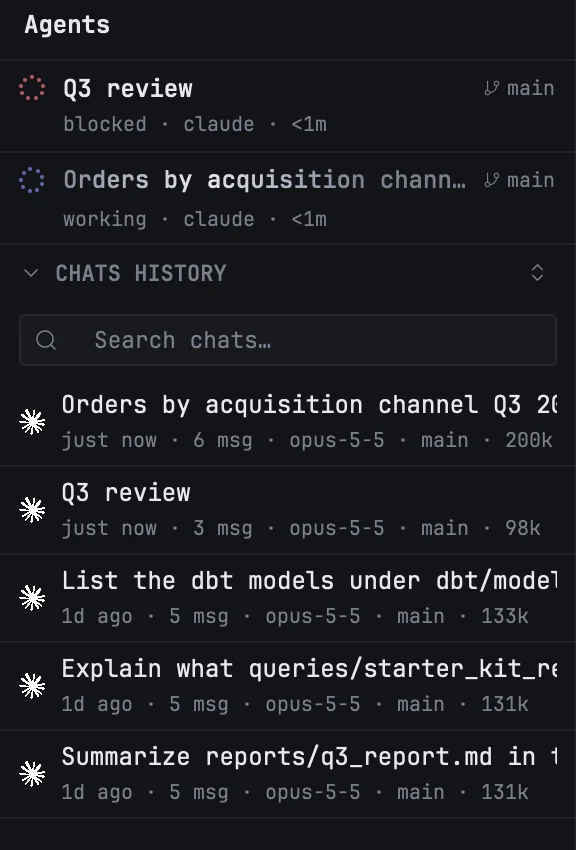
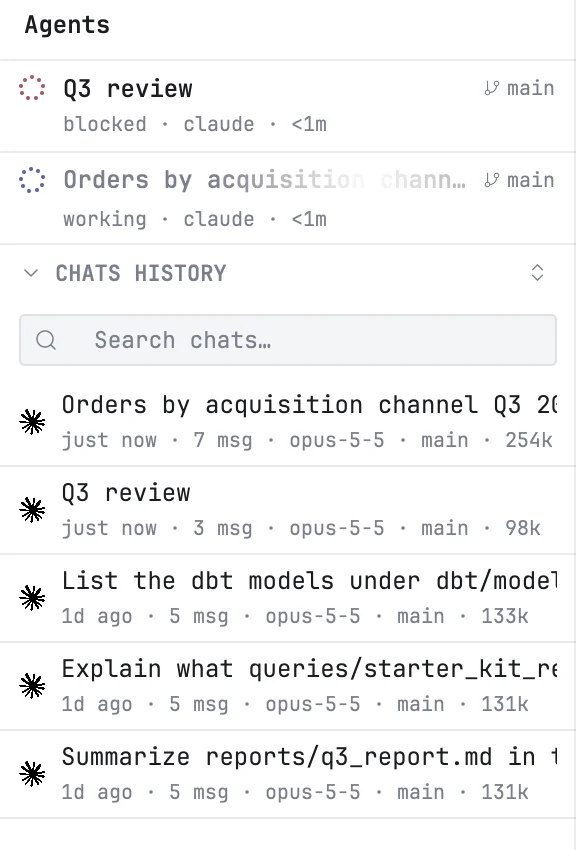
Running agents
Each agent running in a terminal pane gets a row:
- A dotted ring at the start: in the accent colour and turning while the agent works, red while it is blocked, green when it is idle, grey once it has exited. It stands still in every state but working.
- The title — what the agent says it is working on, taken from its terminal title. When it sets none, the folder or the tab name.
- The branch the pane is on.
- A second line — its state, which agent it is, and for how long it has been in that state:
working · claude · 4m.
| State | Means |
|---|---|
| working | the agent is busy |
| blocked | it is waiting for your answer — a question or a permission prompt |
| idle | it has finished its turn and waits for your next prompt |
| done | the agent has exited; the row stays until you close the pane |
Agents that need you are listed first, then the ones working, then the idle ones. While an agent works, a highlight sweeps across its title.
Click a row to jump to its pane, even if the terminal is hidden or the pane is in another tab.
The rail icon carries a count of the agents in your terminal. On the Dock icon, a dot appears while an agent is waiting for your answer. Both can be turned off in Settings → Agents, along with the moving highlight. How agents are recognised is described in Agents in the terminal.
Chats history
Under CHATS HISTORY are your past conversations with Claude Code, Codex and opencode that ran in this project's folder, including its subfolders and git worktrees. mxds reads them from where each agent keeps them; nothing is copied.
Each chat shows the agent's logo, its title — the title the agent gave it, or your first message — and a line with how long ago it was active, how many messages it has, the model, the branch and the tokens it used. A chat that ran in a worktree carries the worktree's name.
The list updates by itself as chats change. Click the header to fold the section away.
Search and sort
Search chats… filters by title. The Sort button orders the list by:
| Sort | Order |
|---|---|
| Recent | newest first (the default) |
| Agent | Claude Code, then Codex, then opencode |
| Name | by title |
Resume a chat
Double-click a chat. mxds opens a new terminal tab in the folder the chat ran in, names it after the chat, and runs the agent's resume command there:
| Agent | Command |
|---|---|
| Claude Code | claude --resume <id> |
| Codex | codex resume <id> |
| opencode | opencode -s <id> |
If you start agents through a wrapper or with extra flags, change these commands in Settings → Agents → Resume Commands. Write {id} where the chat's id goes; a preview under each field shows the command that will be typed. A blank field uses the default.
Delete a chat
Right-click a chat and choose Delete Chat…. After you confirm, the conversation file moves to the Trash: it disappears from the list and the agent can no longer resume it. You can bring it back from the Trash.
opencode keeps all its chats in one database of its own, so mxds cannot delete them one by one; the item is greyed out for them.