SQL and results
Exporting results
Save a result as CSV, TSV, JSON, SQL, Parquet or Excel, all of it or one page.
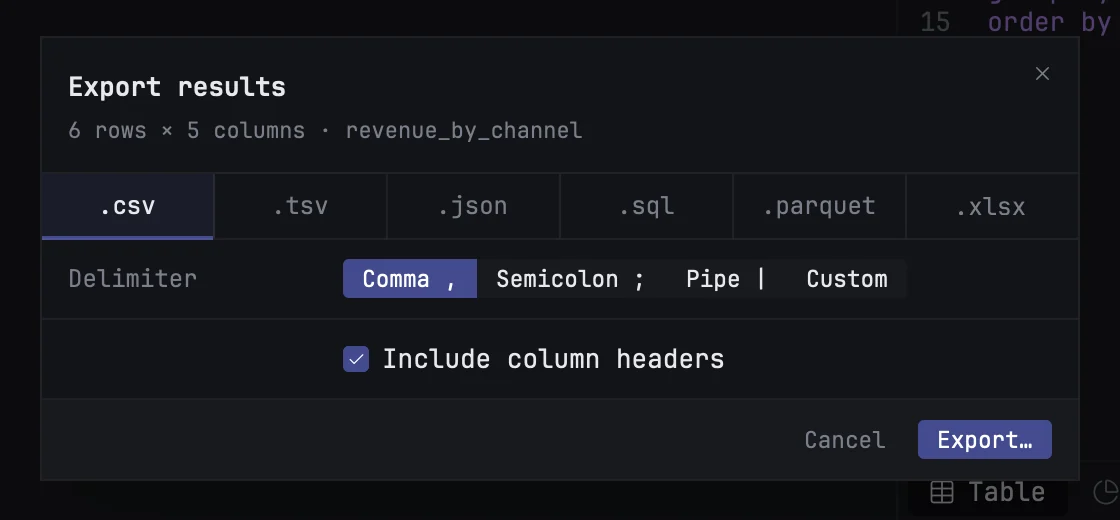
Any result in the Table tab can be saved to a file. Click the download button at the top of the table to open the Export dialog.
Formats
Pick a format from the strip at the top of the dialog, or move between them with ← and →.
| Format | What you get | Options |
|---|---|---|
.csv |
comma-separated text | delimiter, column headers |
.tsv |
tab-separated text | column headers |
.json |
one array of objects, or one object per line | shape: Array or NDJSON |
.sql |
INSERT statements |
table name |
.parquet |
a Parquet file with the result's column types | — |
.xlsx |
an Excel workbook with one sheet | column headers |
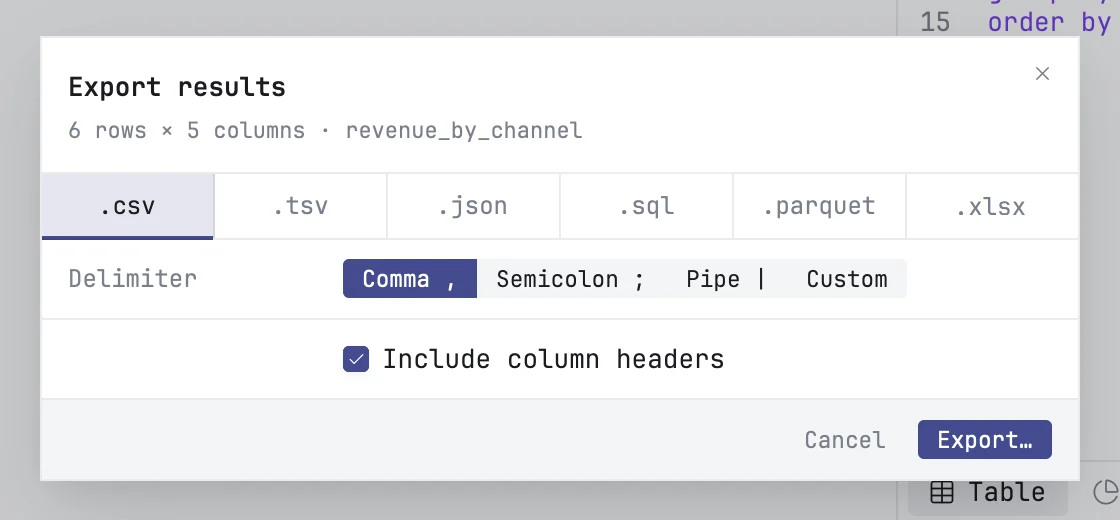
The CSV delimiter is a comma, semicolon or pipe, or Custom for any other single character. A SQL export inserts into the table name you type, which starts as the result's own name.
What gets exported
The file holds the result as the table shows it: your filters and sort, and the columns in the order you see them, pinned columns included.
When the result spans several pages, Scope chooses between All rows and Current page. A result that fits on one page is always exported whole.
Saving
Press Export… or ↩. The standard save sheet opens with a file name already filled in; choose where to put it. The file is written in the background, so you can keep working, and a notification says where it went, with Show in Finder.
The dialog remembers the format and options you used last. Cancelling the save sheet remembers nothing and writes nothing.
From a notebook
A table in a notebook's output has the same dialog: right-click the table and choose Export….