Workspace
Files
The Files panel shows the project folder, opens files in the right kind of tab, and loads data files with a double-click.
The Files panel shows the folder you opened as a project. Open it from the rail or with ⌘E.
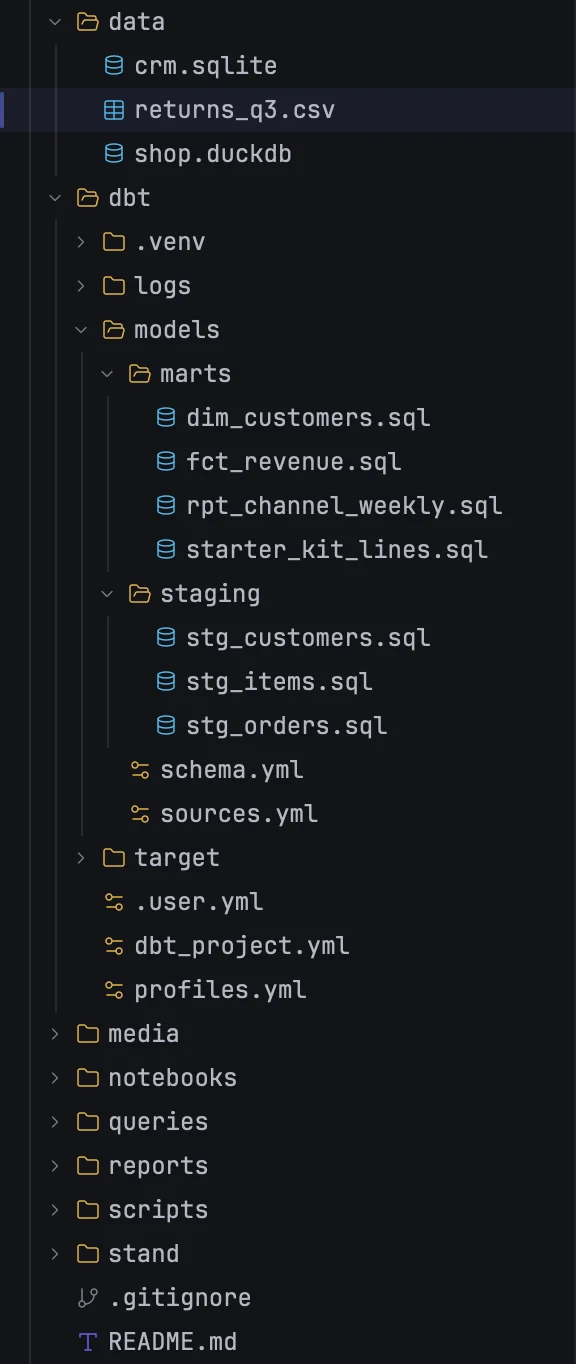
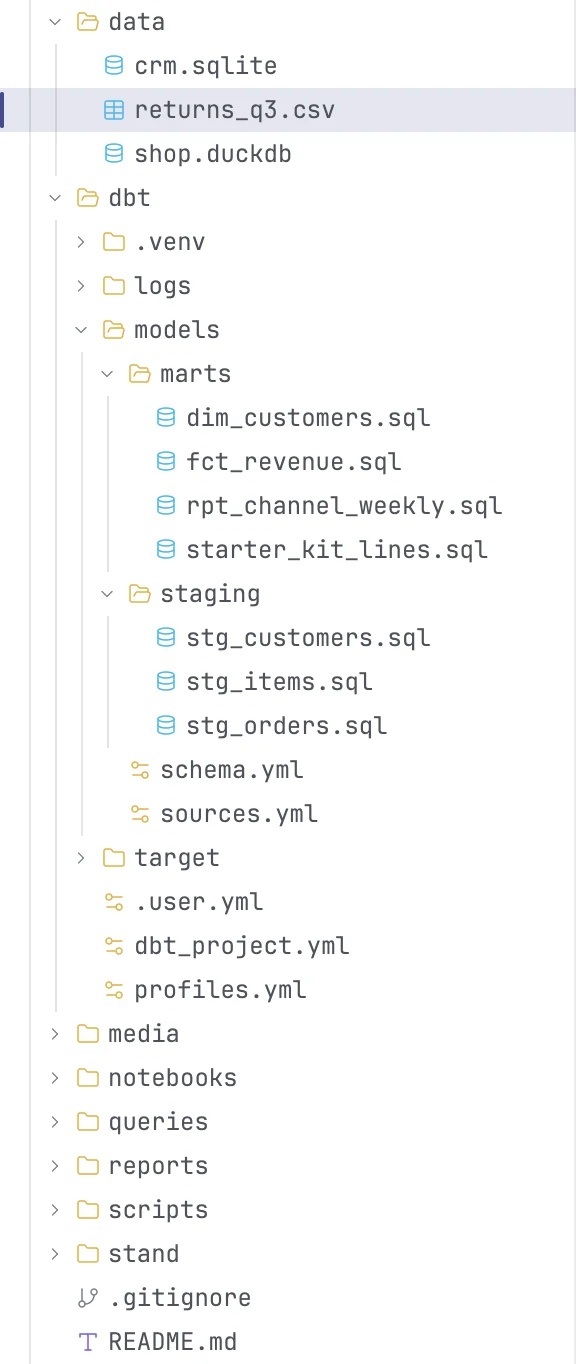
The tree
The open folder is the top row; everything else hangs under it, folders first, then files, each sorted by name. Click a folder to expand or collapse it. The panel follows the disk: files your agents or other apps create, rename or delete show up on their own.
Dotfiles and files listed in .gitignore are shown. A few kinds of system clutter are always hidden: .git, .DS_Store, node_modules, __pycache__ and .build.
The buttons at the top of the panel:
| Button | Does |
|---|---|
| Refresh | reads the folder again |
| Collapse all | closes every folder |
| New file | creates a file in the selected folder, or next to the selected file |
| New folder | creates a folder the same way |
With no folder open, the panel shows an Open Folder button.
Opening files
Double-click a file. What happens depends on the kind of file:
| File | Opens as |
|---|---|
.sql, .md, .py, text and code files, files with no extension |
an editor tab |
.ipynb |
a notebook |
.csv, .tsv, .parquet, .ndjson, .jsonl, and spreadsheets: .xlsx, .xlsm, .xls, .xlsb, .ods |
loaded into the built-in database as a table, and shown in a results tab |
.duckdb, .ddb, .sqlite, .sqlite3, .db |
added to Databases as a connection, and its first table opened |
| images, PDFs, archives, office documents, audio and video | the app macOS uses for that kind of file |
A .db file that turns out not to be a database opens in the editor instead. A file that is not text opens in a tab that says what format it is, rather than as unreadable text.
You can also drop data and database files from Finder anywhere on the mxds window to load them the same way.
To find the current editor tab's file in the tree, press ⌘K E.
Selecting
Click a row to select it. ⌘-click adds or removes a row; ⇧-click selects a range. Cut, copy, delete and drag act on the whole selection.
Changing files
Right-click a row for its menu:
| Item | Does |
|---|---|
| New File, New Folder | creates one inside that folder (folders only) |
| Rename | renames in place; also F2 or ↩ |
| Cut, Copy, Paste | moves or copies files; also ⌘X, ⌘C, ⌘V |
| Delete | moves the files to the Trash |
| Open with Default App | opens the file in the app macOS uses for it |
| Reveal in Finder | shows it in Finder |
| Copy Absolute Path, Copy Relative Path | puts the path on the clipboard |
Paste puts files into the selected folder, or next to the selected file. A copy that would clash with an existing name gets copy added to it, as in Finder.
Drag rows onto a folder to move them there.
The project's own row has no Rename, Cut or Delete, so the project cannot be moved or deleted from the panel by accident.
Deleted files go to the macOS Trash; to get one back, use Put Back in the Trash.
Starring
Hover a row and click the star at its right edge. Starred files appear in the Starred panel and keep their filled star in the tree. Click it again to unstar.