Databases
Importing files
Load CSV, TSV, Parquet, JSON and Excel files into the built-in database, and open SQLite and DuckDB files as connections.
Drag a data file onto the mxds window and it becomes a table you can query. Data files load into mxds, the built-in DuckDB; SQLite and DuckDB database files open as connections of their own.
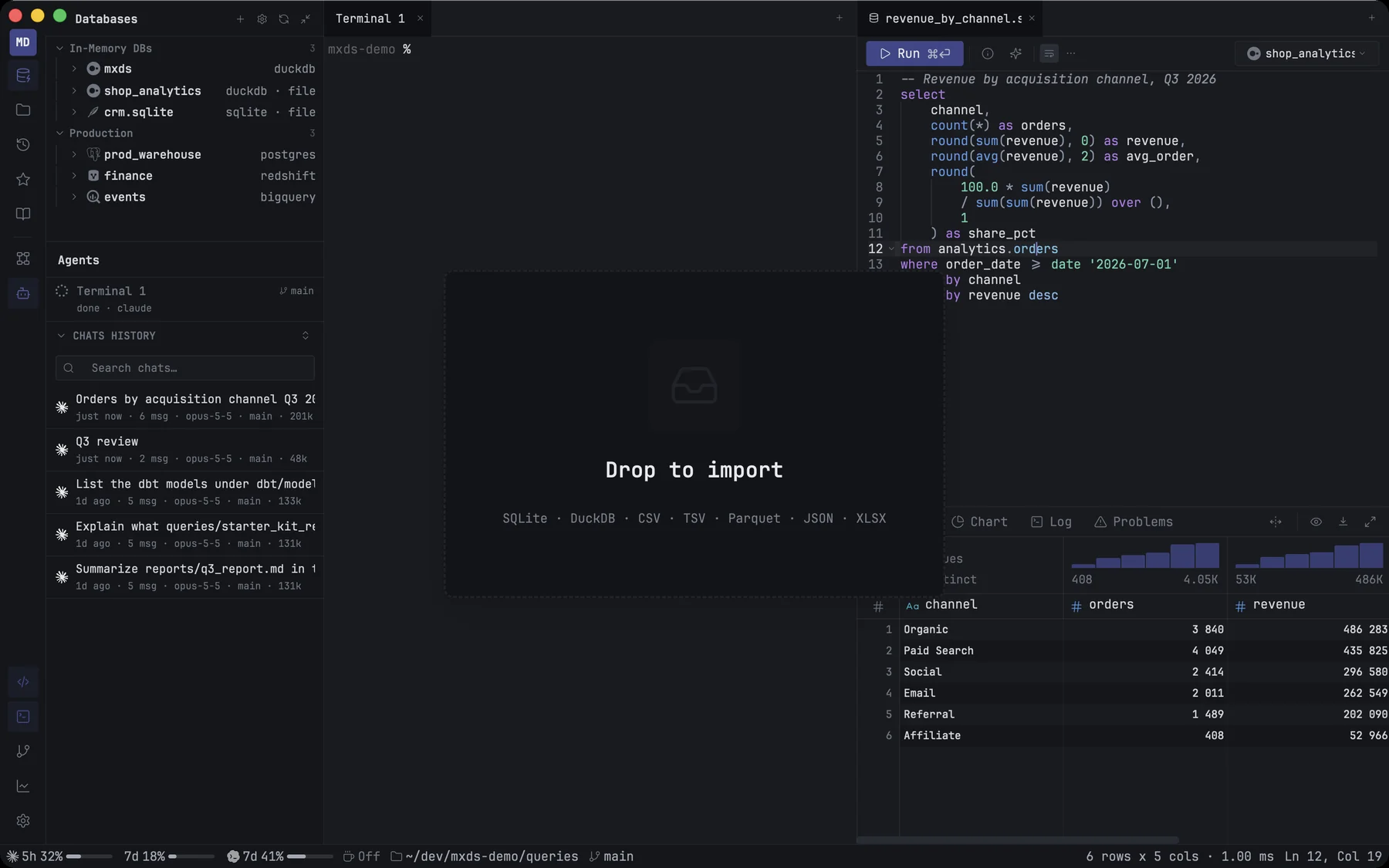
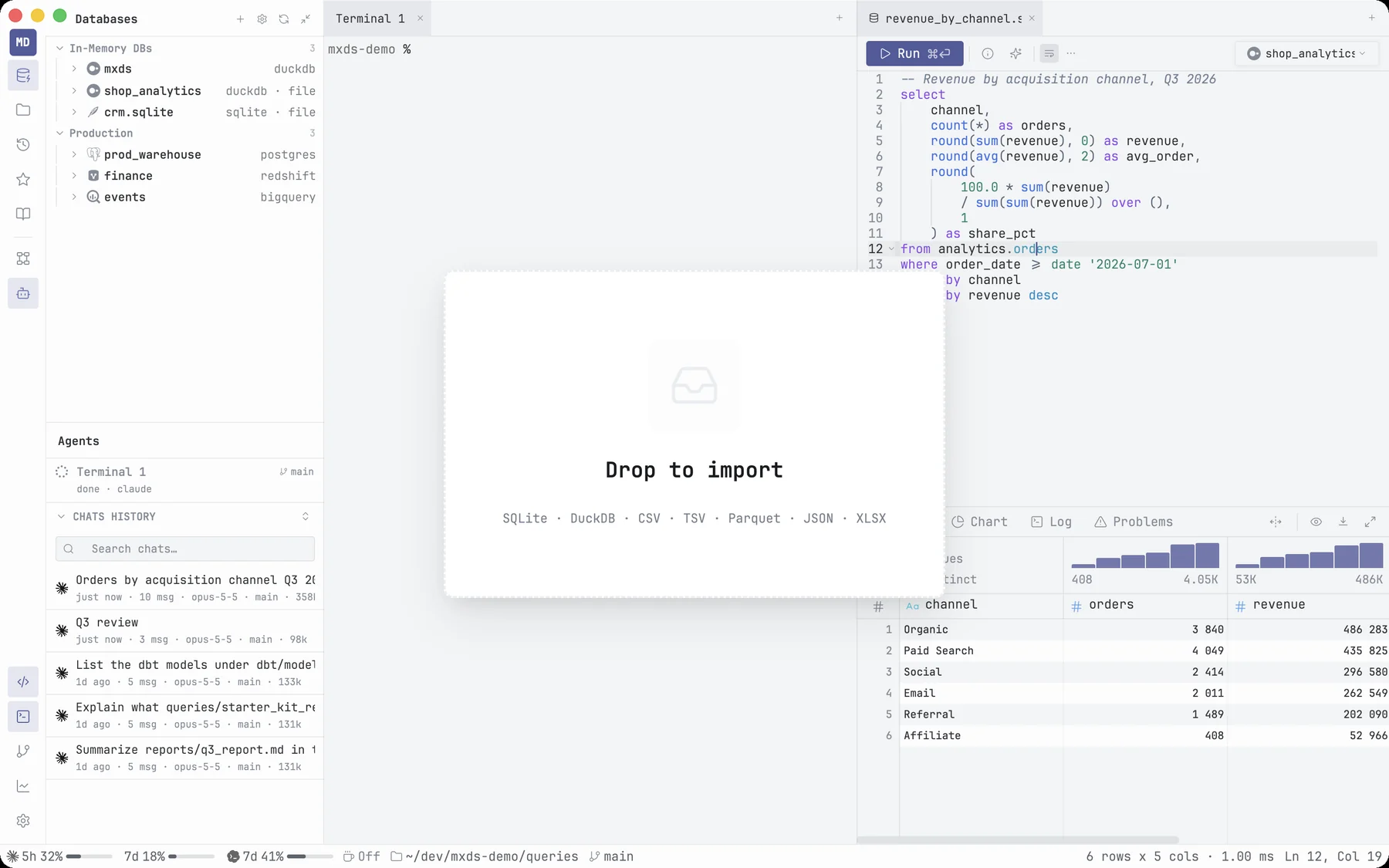
Loading a data file
Drop one or more files anywhere on the window. Each file is loaded into a table in the manual schema of the mxds database, named after the file: Sales 2024.csv becomes manual.Sales_2024. Characters other than letters, digits and _ turn into _, and a name that starts with a digit gets t_ in front.
| Format | Extensions |
|---|---|
| CSV | .csv |
| TSV | .tsv |
| Parquet | .parquet |
| JSON | .json, .ndjson, .jsonl |
| Excel and other spreadsheets | .xlsx, .xlsm, .xls, .xlsb, .ods |
A spreadsheet loads its first sheet, with the first row as the column names. Every format loads without an internet connection.
While a file loads, the status bar shows its progress with a Stop button. Stopping leaves nothing behind.
When it finishes, a notification says how many rows arrived and where, and a new tab opens with a query on the table, already run. The query shows the first 1,000 rows; the table itself has them all.
Other ways to load a file:
- Double-click it in the Files panel (⌘E).
- Load Data File into Memory… in the command palette, to pick files in a dialog.
- Load URL into Memory… in the command palette, to fetch a file from a web address. A link without a file extension is loaded by the kind of file the server says it is.
Loading the same file again
Loading a file that was loaded before replaces the table it made, so dropping an updated export refreshes it. If a table of that name already exists and came from somewhere else, the new one is called name_2, name_3 and so on.
To remove a loaded table, right-click it in the Databases panel and choose Drop Table.
CSV files with bad rows
mxds first reads a CSV or TSV file strictly, exactly as written. If some rows cannot be read — a row with the wrong number of fields, or a value that does not fit its column's type — it reads the file again and skips only those rows.
The notification then says how many rows were skipped, with the line number and DuckDB's reason for the first one. Rows are never dropped without saying so.
Any other problem — a file that cannot be read at all, or a broken Parquet, JSON or Excel file — stops the load with the error, and nothing is written.
SQLite and DuckDB files
Drop a SQLite or DuckDB database file and mxds adds it as a connection, named after the file, in the In-Memory DBs group of the Databases panel. Its first table opens in a tab. mxds recognises these files by their contents, whatever the extension.
New file connections open read-only, so a stray query cannot change a file that belongs to another program. To change that for one connection, turn on Allow writes in its properties; to change it for every new one, turn on Settings ▸ Database ▸ Open local database files with writes enabled.
Dropping a file that is already a connection opens that connection again instead of adding a second one.
Tables from other databases
A table on any connection can be copied into mxds too: right-click it in the Databases panel and choose Load into Memory. The copy lands in the manual schema, where you can join it with your files.