Notebooks
Jupyter notebooks
Opening .ipynb files, choosing a kernel, working in command and edit mode, running cells, outputs, the variable inspector and saving.
Any .ipynb file opens as a notebook in mxds, on a Jupyter kernel from your own Python environments. The file stays a standard Jupyter notebook: mxds keeps everything in it that it does not use itself, so it opens the same in JupyterLab, VS Code or DataSpell afterwards.
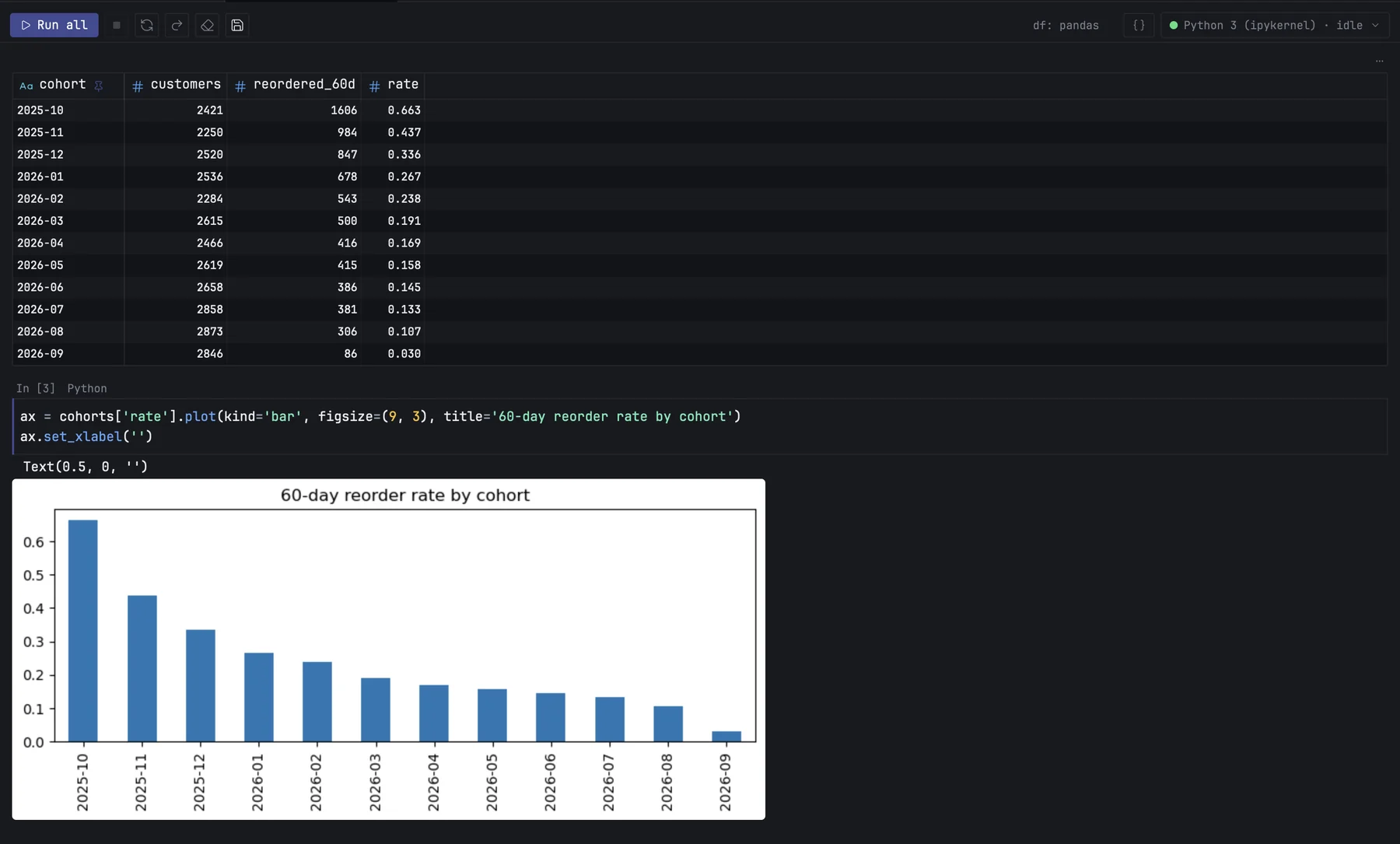
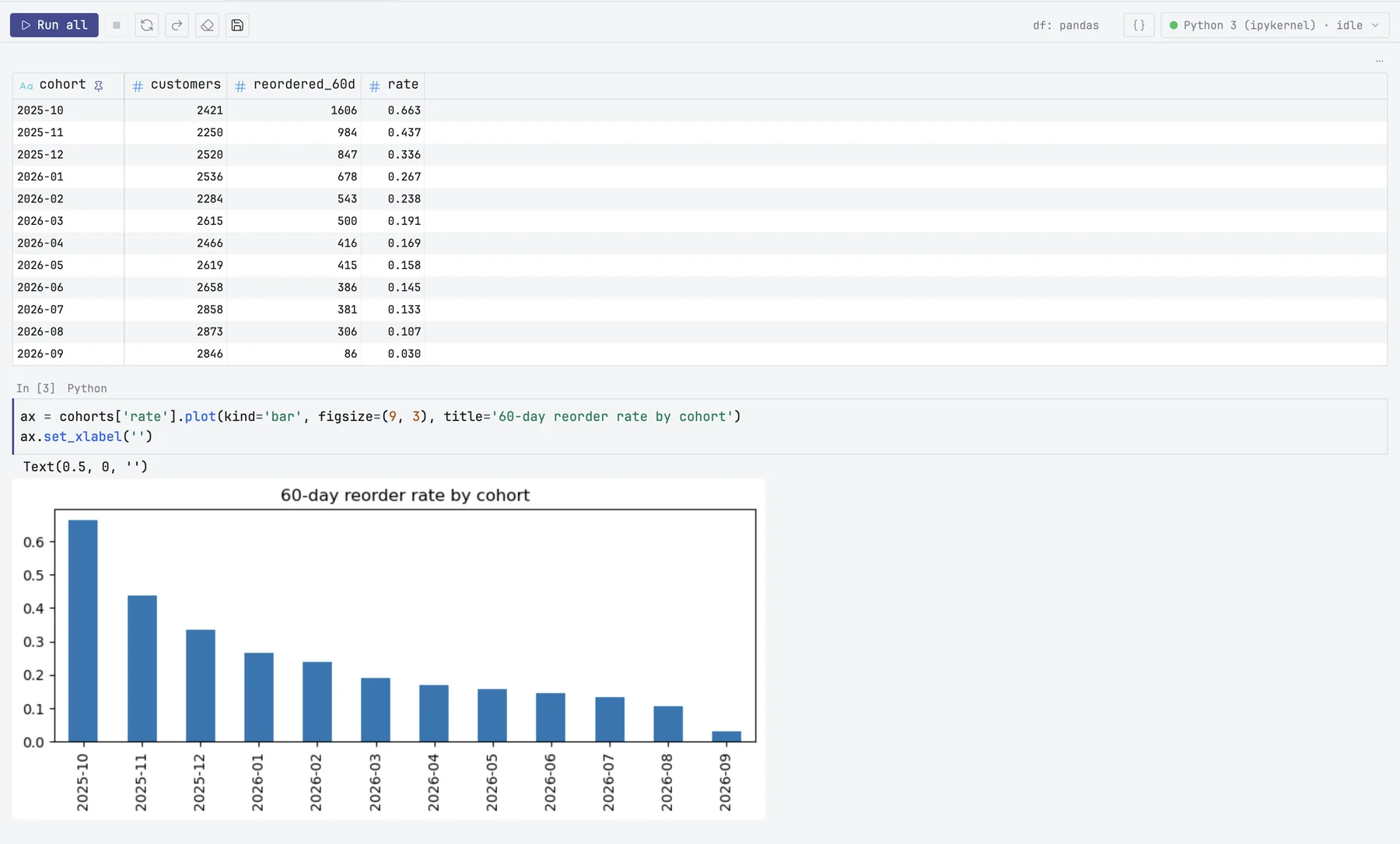
Opening a notebook
Open an .ipynb file from the Files panel, the command palette (⌘P) or Finder. mxds reads notebook format 4, the format Jupyter has written since 2015. A notebook in the older format 3 does not open; open it in Jupyter once and save it again, and it will.
To start a new notebook, choose File ▸ New Notebook, or New Notebook in the command palette. mxds creates Untitled.ipynb in the project folder (then Untitled1.ipynb and so on, as Jupyter names them) with one empty code cell, and opens it. An empty .ipynb file, such as one made with New File, opens as a new notebook too; nothing is written to it until you save.
Kernels
A notebook runs on a kernel installed on your Mac — the same kernels jupyter kernelspec list shows, including those in conda and virtual environments. The kernel menu at the right of the notebook's toolbar shows the kernel and its state: starting…, idle, busy or dead.
mxds picks the kernel the notebook names, or python3, or the first one it finds. If the notebook asks for a kernel you do not have, a note says which one it is using instead. Pick another in the kernel menu at any time.
The kernel menu also lists Python interpreters that have no kernel yet, marked install kernel. Choosing one installs ipykernel into that environment and registers it as a kernel, so it is ready next time as well.
The kernel starts the first time you run a cell, not when the notebook opens. Closing the notebook's tab shuts its kernel down.
| Toolbar button | Does |
|---|---|
| Run all | runs every cell from the top. While cells run it becomes Stop |
| Interrupt | stops the running cell, like ⌃C in Jupyter |
| Restart kernel | starts the kernel afresh. All variables are lost, so it asks first |
| Restart and run all | restarts, clears every output and runs the notebook from the top |
| Clear all outputs | removes every output |
| Save | saves the file |
| Variables | opens the variable inspector |
| df: pandas | what a SQL cell's result becomes in Python — see SQL cells |
If a kernel dies, the menu says dead and the queued cells are cancelled. Restart it to go on.
The line above each cell
A quiet line of small text sits above every cell. It shows the cell's run marker — In [3] once it has run, [*] while it waits or runs — and its type: Python, SQL, Markdown or Raw. A SQL cell adds its connection and the name its result goes to in Python. Point at one of them and it shows a frame and a chevron: click it for a menu. The type menu changes that cell's type, and switching between Python and SQL is one step for ⌘Z.
Command mode and edit mode
Like Jupyter, a notebook has two modes:
- Edit mode — the caret is in a cell and keys type text. Press ↩ or click into a cell to enter it.
- Command mode — single keys act on whole cells. Press Esc to enter it.
| In command mode | Does |
|---|---|
| ↑ ↓ or K J | previous or next cell. Add ⇧ to select several |
| A B | new code cell above or below |
| ⇧A ⇧B | new heading cell above or below |
| DD | delete the selected cells |
| X C V | cut, copy, paste below. ⇧V pastes above |
| Y M R | make the cell code, Markdown or raw |
| 1 to 6 | make the cell a heading of that level |
| ⇧M | merge the selected cells |
| ⌥↑ ⌥↓ | move the cells up or down |
| ← → | fold or unfold the section under a heading |
| O | hide or show the cell's outputs |
| Z ⇧Z | undo, redo |
| II | interrupt the kernel |
| 00 | restart the kernel |
In edit mode, ⌃⇧- splits the cell at the caret. You can also drag a cell by the line above it, and right-click a cell for the same commands.
Undo covers both typing and changes to cells, such as a deleted or moved cell, in one history.
Running cells
| Keys | Runs |
|---|---|
| ⇧↩ | the cell, then moves to the next one |
| ⌘↩ or ⌃↩ | the selected cells, and stays |
| ⌥↩ | the cell, then inserts a new cell below |
| ⌘⇧↩ | every cell above the selected one |
| ⌘. | interrupts |
Run below, run all and clearing outputs are also in the command palette under Notebook.
A cell waiting or running shows [*] in the line above it, and In [n] when it is done. Running several cells stops at the first one that fails, the way JupyterLab does. Running a Markdown cell shows it formatted; double-click it to edit it again.
Completion opens as you type, from the kernel; ⌃Space or ⌥Esc opens it without typing. ⇧⇥ shows the kernel's documentation for the name at the caret.
Outputs
mxds draws outputs itself:
- Text keeps its colours and progress bars. Long output folds after 40 lines; Show all opens it, and Save as .txt saves it.
- Errors show the exception and the traceback.
- Images — PNG, JPEG and SVG. Click one to open it full size, where you can copy it, save it or open it in Preview.
- DataFrames from pandas and polars become a table you can sort, resize and copy from. The ⋯ menu on a table copies it as TSV or Markdown, exports it, or opens it in the results pane.
- Interactive charts from Plotly and Bokeh, and other interactive HTML, run live in the cell. For Bokeh, run the cell with
output_notebook()first. - HTML and Markdown are drawn as formatted text.
Outputs mxds cannot draw, such as ipywidgets, show as a card naming the kind of output, with Open in browser where that can work.
A cell keeps at most 16 MB of output. Past that, the rest is not kept, and a line under the outputs says the output was truncated and how much was left out.
Right-click an output to copy it, save it or clear it. Settings → Notebook sets how many lines of text are shown before folding and how many outputs a cell shows.
The variable inspector
Variables in the toolbar lists what the kernel holds: each name, its type, and a short summary — a value, a length, or a table's rows × columns and column types. The list refreshes after each run while it is open.
Click a pandas or polars DataFrame in the list, or select it and press ↩, to open the whole frame in the results pane, with its column summaries, sorting and export. For pandas, the kernel needs pyarrow.
Saving
⌘S or Save in the toolbar saves the notebook. A dot on the tab means there are unsaved changes, and closing the tab then asks whether to save. Notebooks are not saved automatically. If a save fails, a notification says why.
If the file changes on disk — say an agent edited it — the notebook reloads by itself and keeps the kernel and its variables. It does so without asking even when you have unsaved changes; ⌘Z brings your edits back.
Notebooks and agents
An agent in the mxds terminal can read and edit the open notebook, run cells and read their output:
mxds nb add code "df.describe()" --at 3
mxds nb run 3
mxds nb wait 3 --timeout 120
Agents connected through MCP use the notebook_* tools.