SQL and results
Table docs
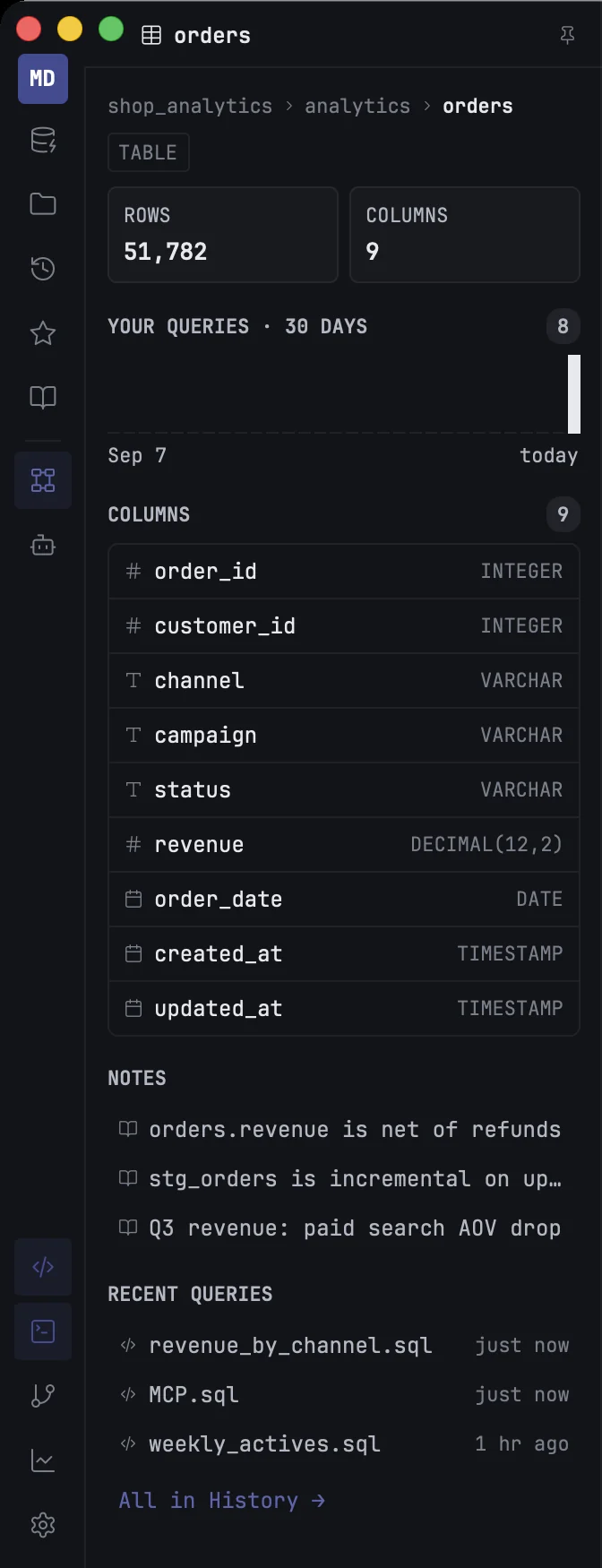
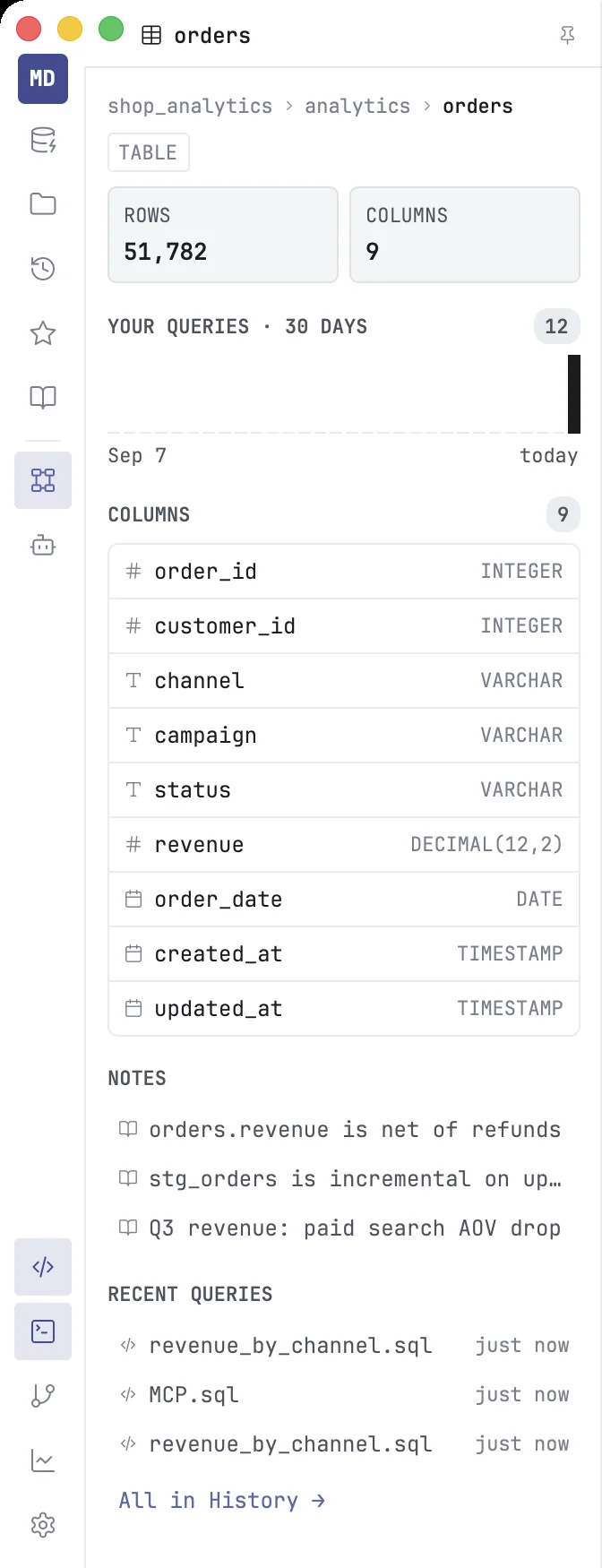
The Schema panel shows what is known about the table you are looking at — its description, size, columns, dbt model, notes and the queries that use it.
The Schema panel is the documentation of one table: the one you clicked in the Databases panel, or the one whose name the caret is on in the editor. It gathers what the database, your dbt project, Recall and your query history know about that table in one place. Open it from the rail.
Which table it shows
The panel follows you. Click a table in the Databases panel, or rest the caret on a table name in a query, and the panel switches to that table.
To keep one table in view while you work elsewhere, click the pin at the top of the panel. Click it again to follow your selection again; the panel jumps to the last table you picked while it was pinned.
What it shows
From the top:
- Where it is — connection, schema and table, and chips for its kind (table or view) and its dbt materialization.
- Description — from your dbt project when the model has one, otherwise the comment stored in the database. When both exist and say different things, both are shown, each labelled with where it came from.
- Rows, size and columns — rows and size are the database's own estimates, so they appear instantly but may be approximate.
- Your queries · 30 days — how often this table was queried from this Mac, day by day, your agents' queries included.
- dbt — for a table that is a dbt model or source: its file, how many nodes feed it and how many it feeds, and Open model and Show in Lineage for a model, Open YAML for a source.
- Columns — each column's name, type and description. Click a column to copy its name. A table with more than 15 columns gets a Filter columns… box.
- Notes — the Recall notes that mention the table. Click one to read it.
- Recent queries — the three latest queries on this table. Click one to open it in a new tab on its connection.
- All in History → — opens History searching for this table, across all connections.
Where the facts come from
Columns, kinds and estimates come from the schema the Databases panel already loaded; the panel does not query the table itself. Descriptions are read from the database once per table and from your dbt project, and usage from your query history. Refresh a connection in the Databases panel to bring the panel up to date after a schema change.
A table that is not in the Databases panel's schema — one you typed before refreshing, say — shows its name and history but no columns or estimates.