Getting started
Install and first launch
What mxds needs, how to install it, the Welcome screen, and how a project folder works.
mxds is a native Mac app. You install it like any other app, open a folder, and that folder becomes your project.
Requirements
- A Mac with Apple silicon.
- macOS 14 Sonoma or later.
Nothing else is needed to start: the built-in database works without setup. Some features use tools you may already have — git for the git view, a Jupyter kernel for notebooks, dbt for dbt projects, and Claude Code, Codex or another agent for the terminal.
Install
Download mxds from mxds.app/download, move it to your Applications folder, and open it.
The Welcome screen
On first launch the main window opens with the Welcome screen in front of it.
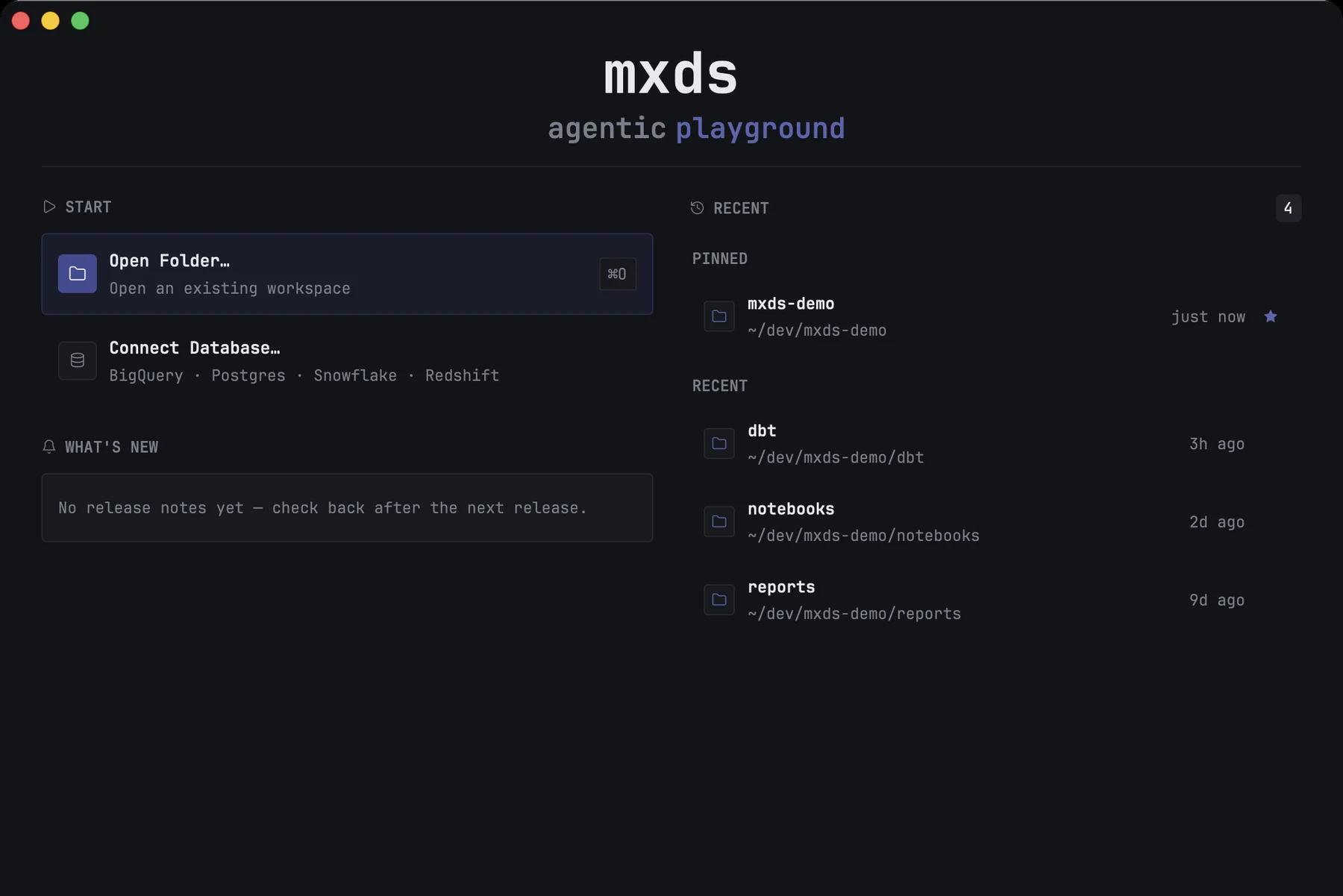
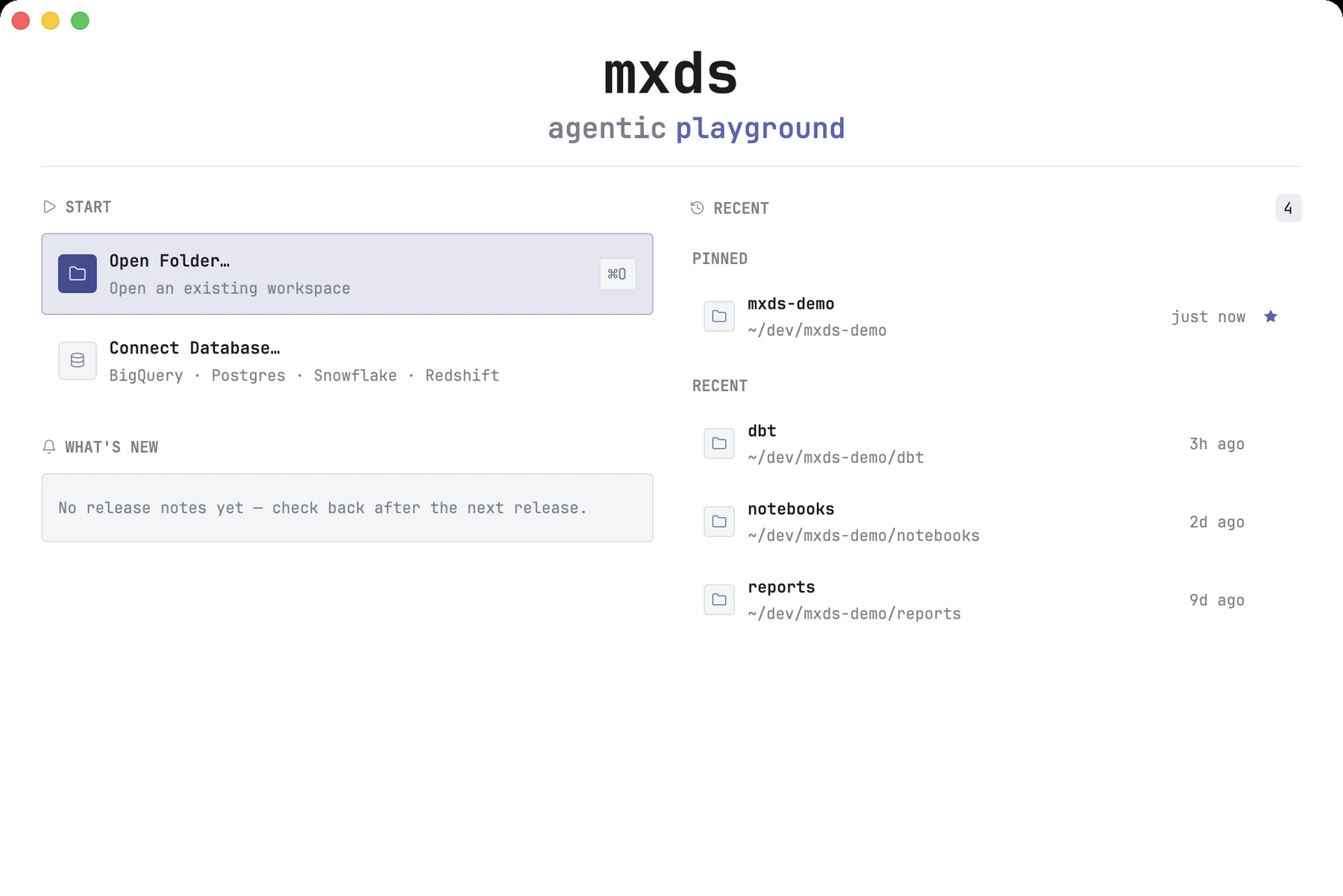
| Part | What it does |
|---|---|
| Open Folder… | picks a folder to open as a project (⌘O) |
| Connect Database… | opens Settings on the Connections page |
| What's new | notes from recent releases, downloaded from mxds.app |
| Recent | folders you opened before, newest first, with how long ago |
| Integrations | whether the mxds command line tool is installed, and which AI clients are connected to mxds |
| Show on startup | whether Welcome opens every time mxds starts |
Click a folder in Recent to open it. Hover a row and click its star to pin it: pinned folders stay at the top of the list.
In Integrations, Install CLI puts the mxds command on your PATH for terminals outside mxds; inside mxds terminals it is already there. Configure MCP opens the settings for connecting agents.
Close Welcome with Esc or ⌘W.
Opening a project
A project in mxds is a folder. Open one from Welcome, with File → Open Folder… or with ⌘O. mxds then:
- shows the folder in the Files panel,
- opens a terminal tab in it,
- puts it at the top of Recent.
The next time you start mxds, it opens the last project again.
mxds has one window, so one project is open at a time. Opening another folder switches the window to it: the editor tabs of the old project are saved and closed, and the new project's tabs come back as you left them.
What mxds keeps in the project
Each project gets a .mxds folder inside it. It holds what belongs to that project:
- your editor tabs and scratch queries,
- query history,
- starred items,
- Recall notes.
mxds puts a .gitignore in .mxds, so git ignores the folder.
Your connections, settings, terminal tabs and usage dashboard belong to the app, not to a project. They stay the same when you switch projects.
Coming back to Welcome
- Press ⌘⇧W.
- Click the square with the project's initials at the top of the rail.
- Choose File → Open Welcome Screen.
Finding this guide
Help → mxds Help opens this user guide in your browser.