SQL and results
Query history
Every query you and your agents run, searchable by text and by table, with starred queries kept for good.
mxds keeps every query you run, successful or failed, and the queries your agents run too. Open the History panel from the rail or with ⌘Y.
What an entry shows
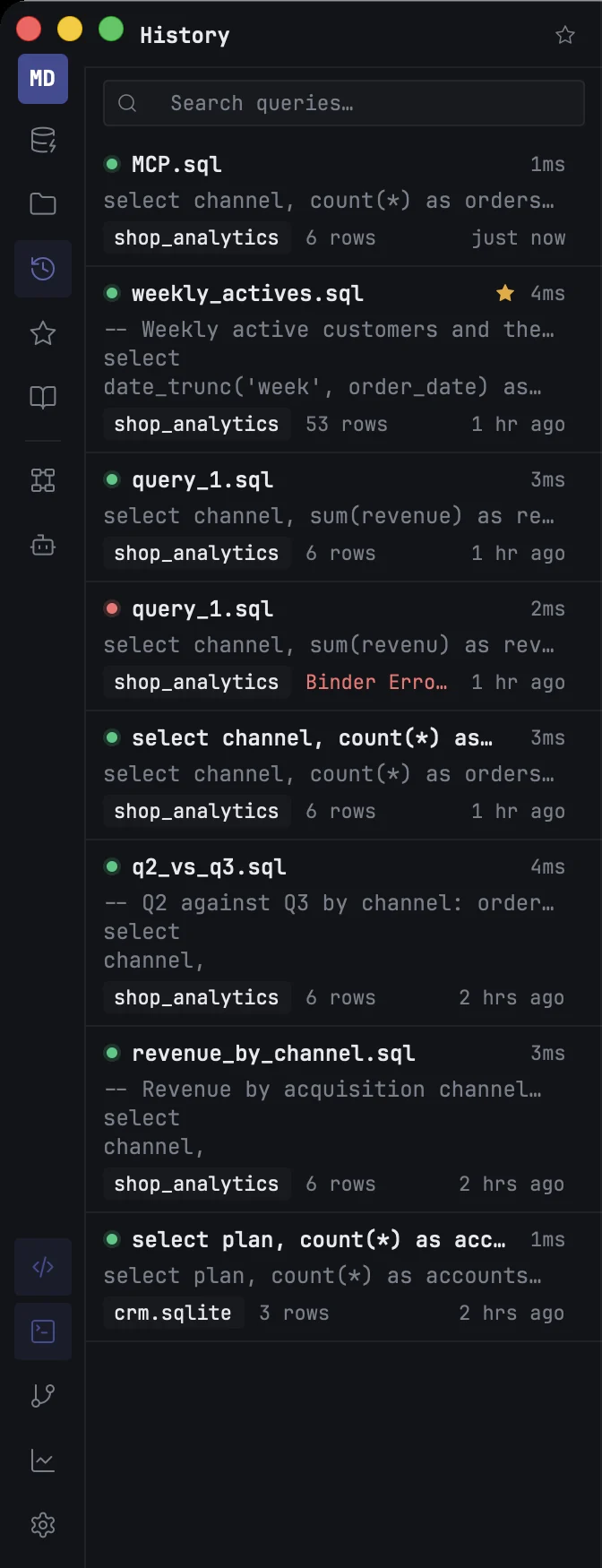
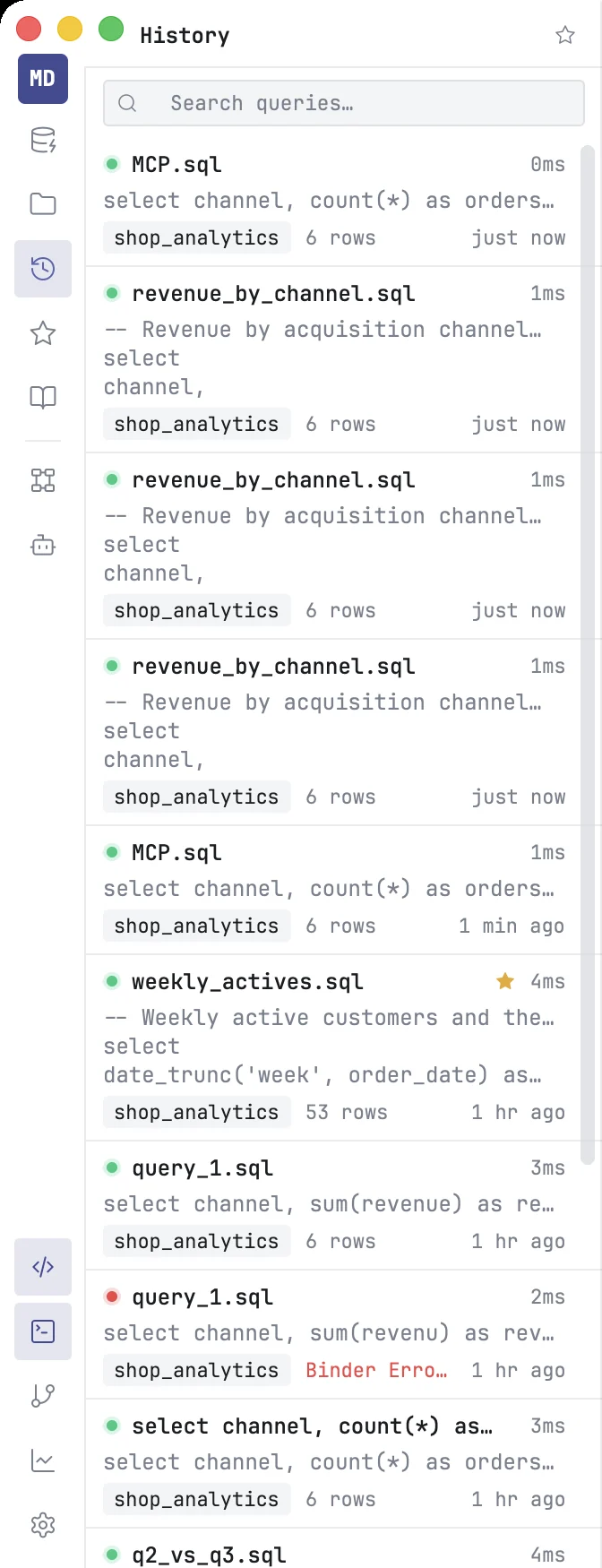
Newest first, each entry has:
- a green or red dot — whether the query succeeded or failed;
- the name of the tab or file it ran from, and how long it took;
- the first lines of the SQL;
- the connection it ran on;
- how many rows it returned, or the first line of the error;
- when it ran.
Double-click an entry to open its SQL in a new tab on the same connection, ready to run.
A query that failed is kept with its error, so you can find the one that did not work and fix it. Explain is recorded too, whether it worked or failed. A query you stopped is not recorded.
Searching
Type in Search queries… to show only the queries whose SQL contains that text, in any case.
Type a table name — orders, mart.orders or analytics.mart.orders — and the list also includes every query that reads or writes that table, however it was written: mart.orders finds from mart.orders, from "mart"."orders" and a bare from orders.
The × next to the star clears the search and the filter.
Starring
Hover an entry and click its star to keep it. Click the star at the top of the panel to show only starred queries.
Starred queries are never deleted, whatever the retention setting says. They also appear in the Starred panel.
The Starred panel
The Starred panel, on the rail, collects everything you starred in one place, each kind under its own heading:
| Section | Holds | Clicking an item |
|---|---|---|
| Connections, Schemas, Tables | what you starred in the Databases panel | selects it in the Databases panel |
| Saved queries | queries starred in History | opens the SQL in a new tab on its connection |
| Files | files starred in the Files panel | selects it in the Files panel |
Filter starred… narrows the list. Click an item's star to unstar it.
Selecting and deleting
Click to select an entry, ⌘-click to add or remove one, ⇧-click to select a range. ⌫ deletes the selected entries; there is no undo.
Where it is kept, and for how long
History belongs to the project: it is saved in the project folder, under .mxds/history, one file per day. When no folder is open, mxds keeps a history of its own.
By default an entry is kept for 90 days. Change it in Settings ▸ History ▸ Keep history for; 0 keeps everything. The same page shows how much history the project holds.