Getting started
Keyboard shortcuts
The shortcuts you will use every day, grouped by where they work.
Most of mxds can be driven from the keyboard. This page lists the shortcuts you will use most. To see them in the app, press ⌘? (that is ⌘⇧/) or choose Help → Keyboard Shortcuts. The sheet reads the keys from the app itself, so it is always current. It has sections for the whole app, the command palette, tabs, the sidebar and panels, the SQL editor, the Markdown preview, the results table, notebooks, the terminal, the lineage canvas, and the Files and History panels. Hovering an icon in the rail also shows its shortcut. Help → mxds Help opens this guide.
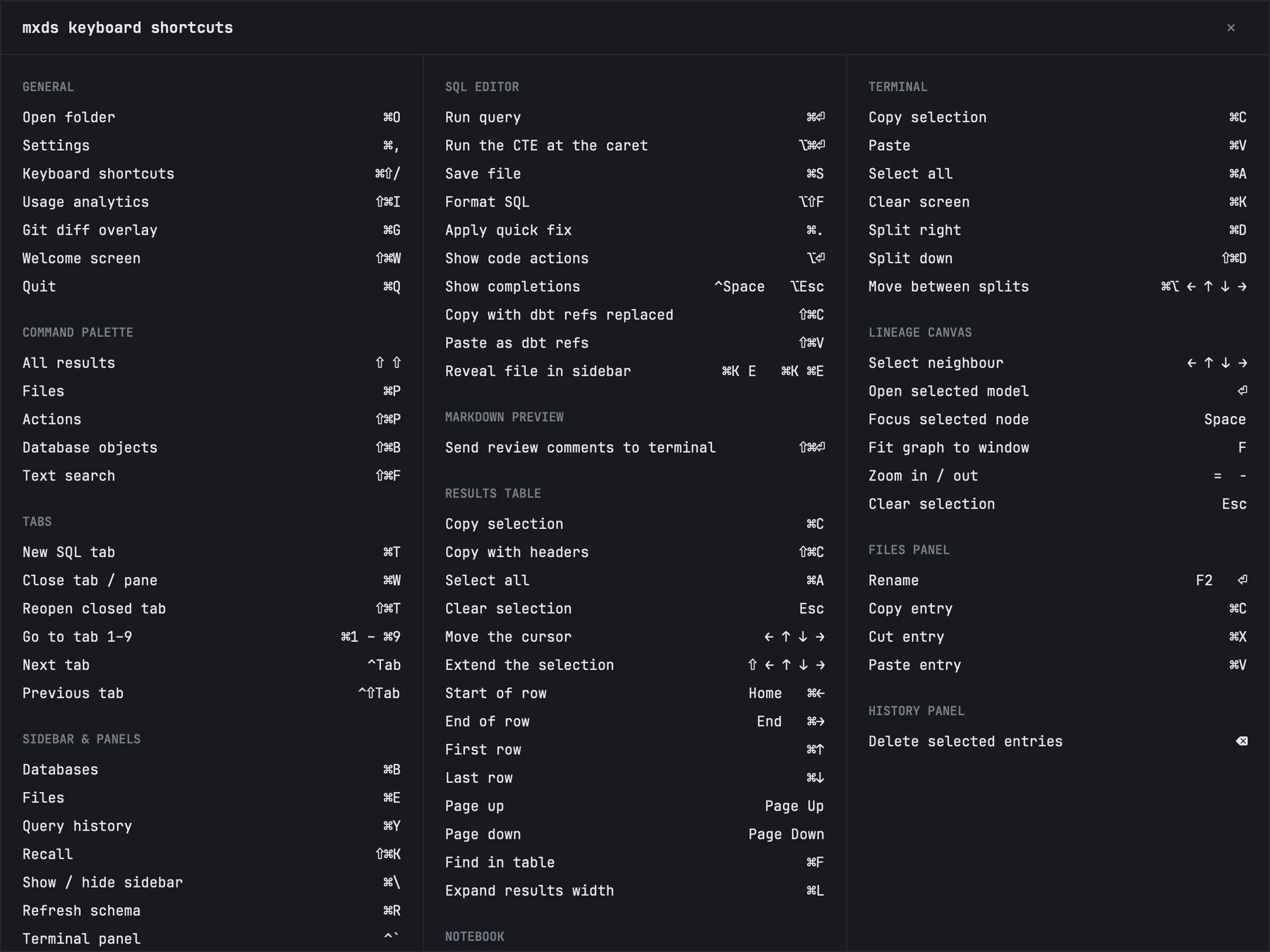
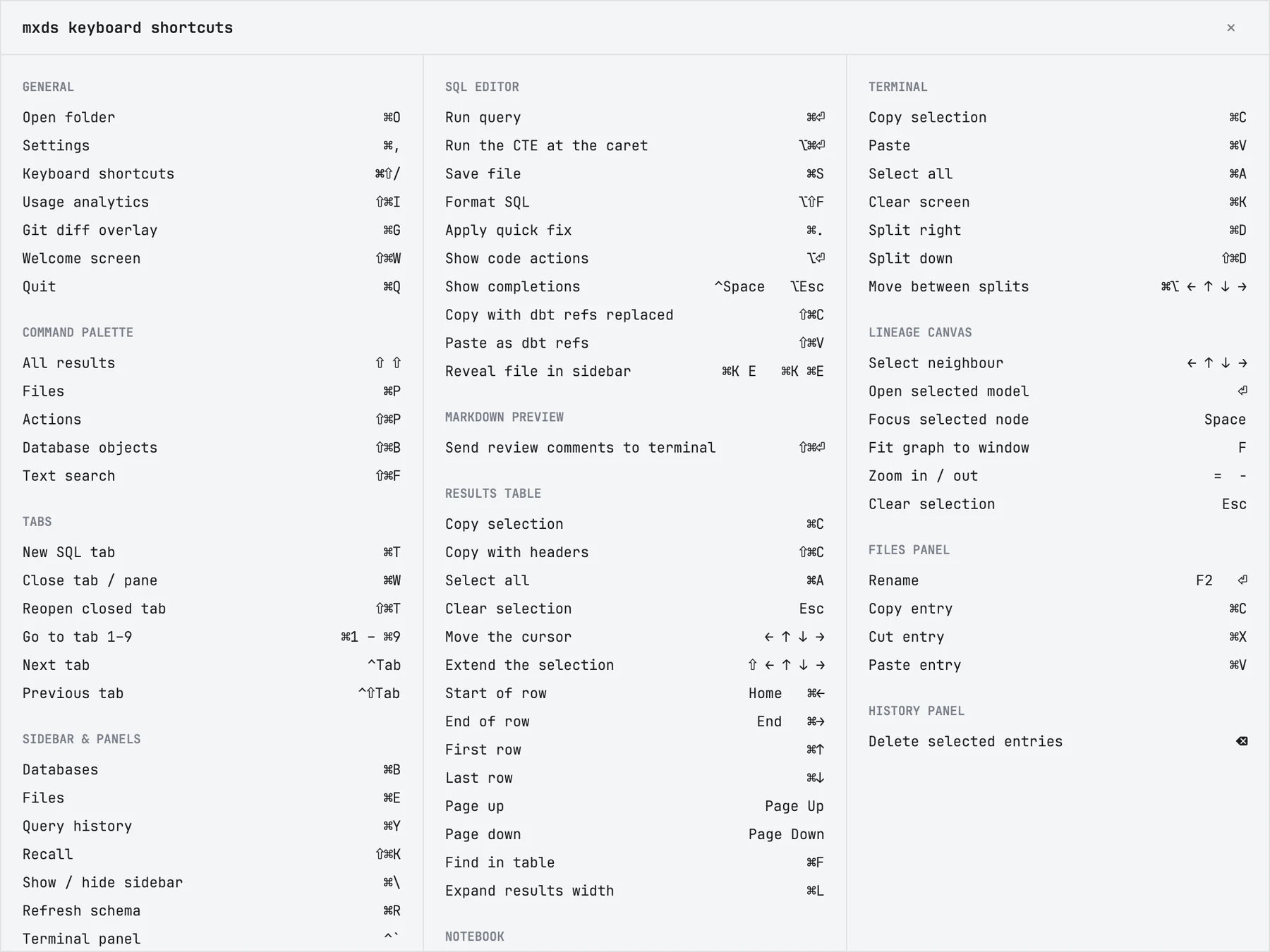
Some keys mean different things in different places. ⌘K, for example, clears the screen in the terminal. The tables below say where each shortcut works.
Window and panels
| Shortcut | Does |
|---|---|
| ⌘B | Databases panel |
| ⌘E | Files panel |
| ⌘Y | History panel |
| ⌘⇧K | Recall panel |
| ⌘\ | hide or show the whole sidebar |
| ⌃` | hide or show the terminal |
| ⌘⇧E | hide or show the editor |
| ⌘J | hide or show the results |
| ⌘⇧L | the Lineage tab |
| ⌘G | the git view |
| ⌘[ / ⌘] | move to the pane on the left / right — the terminal and the editor |
| ⌘R | refresh database schemas |
| ⌘O | open a folder |
| ⌘⇧W | Welcome screen |
| ⌘⇧I | usage dashboard |
| ⌘, | Settings |
| ⌘? | all keyboard shortcuts |
| ⌘Q | quit |
Pressing a panel's shortcut while that panel is showing collapses its section of the sidebar.
⌘[ and ⌘] follow the screen. With the terminal on the left, which is the default, ⌘[ goes to the terminal; move the terminal to the right in Settings → Appearance and the two keys swap.
Tabs
These work in whichever tab bar has focus: the editor's or the terminal's.
| Shortcut | Does |
|---|---|
| ⌘T | new tab: a SQL tab in the editor, a shell in the terminal |
| ⌘W | close the tab (in a split terminal, the focused split) |
| ⌘⇧T | reopen the tab you closed last |
| ⌘1 … ⌘9 | go to tab 1 to 9 |
| ⌃Tab / ⌃⇧Tab | next / previous tab |
Editor and queries
| Shortcut | Does |
|---|---|
| ⌘↩ | run the selection, or the statement under the caret |
| ⌘⌥↩ | run the query up to the CTE under the caret |
| Esc | stop the running query |
| ⌘S | save |
| ⌥⇧F | format the SQL, or the selection |
| ⌃Space or ⌥Esc | open the completion list without typing |
| ⌘. | apply the quick fix under the caret |
| ⌥↩ | show every fix and action available at the caret |
| ⌘/ | comment or uncomment the line, or every selected line |
| ⌘K E | show the current file in the Files panel |
| ⌘⇧C | copy with dbt refs replaced by table names |
| ⌘⇧V | paste table names as dbt refs |
| ⌘⇧↩ | Markdown tabs: send your review comments to the agent in the terminal |
Results
Click the table first so it has focus.
| Shortcut | Does |
|---|---|
| ⌘F | find in the result; ↩ next match, ⇧↩ previous |
| ⌘C | copy the selected cells |
| ⌘⇧C | copy them with column headers |
| ⌘A | select every cell |
| arrows, ⇧ + arrows | move, extend the selection |
| ⌘↑ / ⌘↓ | first / last row |
| Esc | clear the selection |
| ⌘L | widen the results across the terminal and the editor, and back |
Terminal
| Shortcut | Does |
|---|---|
| ⌘C / ⌘V | copy / paste. Pasting a picture hands it to the agent as an attachment |
| ⌘A | select everything |
| ⌘K | clear the screen |
| ⌘D | split to the right |
| ⌘⇧D | split down |
| ⌘⌥ + arrow | move to the split on that side |
| ⌘← / ⌘→ | start / end of the line |
| ⌘⌫ | delete to the start of the line |
Hold ⇧ and drag over text to write a note about it; ↩ types the note, with the quoted lines, into the agent's input.
Command palette
| Shortcut | Opens |
|---|---|
| ⇧ twice | the palette, searching everything |
| ⌘P | files |
| ⌘⇧P | actions |
| ⌘⇧B | tables and columns |
| ⌘⇧F | text in files |
Inside the palette, Tab moves between its tabs, ↩ opens the selected result and Esc closes it.
Files panel
Click a row first so the panel has focus.
| Shortcut | Does |
|---|---|
| F2 or ↩ | rename |
| ⌘C / ⌘X / ⌘V | copy / cut / paste files |
Notebooks
A notebook has two modes, as in Jupyter. In command mode the keys act on cells; in edit mode you type in a cell. ↩ enters the cell, Esc leaves it.
| Shortcut | Does |
|---|---|
| ⇧↩ | run the cell and move to the next one |
| ⌘↩ | run the cell and stay |
| ⌥↩ | run the cell and insert a new one below |
| ⌘⇧↩ | run every cell above |
| ⌘. | interrupt the kernel |
| ⌘F | find in the notebook |
In command mode only:
| Keys | Does |
|---|---|
| ↑ ↓ or K J | previous / next cell |
| A / B | insert a cell above / below |
| D D | delete the selected cells |
| M / Y / R | make it Markdown / code / raw |
| X C V | cut, copy, paste cells |
| Z / ⇧Z | undo / redo |
| I I | interrupt the kernel |
| 0 0 | restart the kernel, after you confirm |
Command mode has more: merging and moving cells, folding headings, hiding outputs.